by
by 
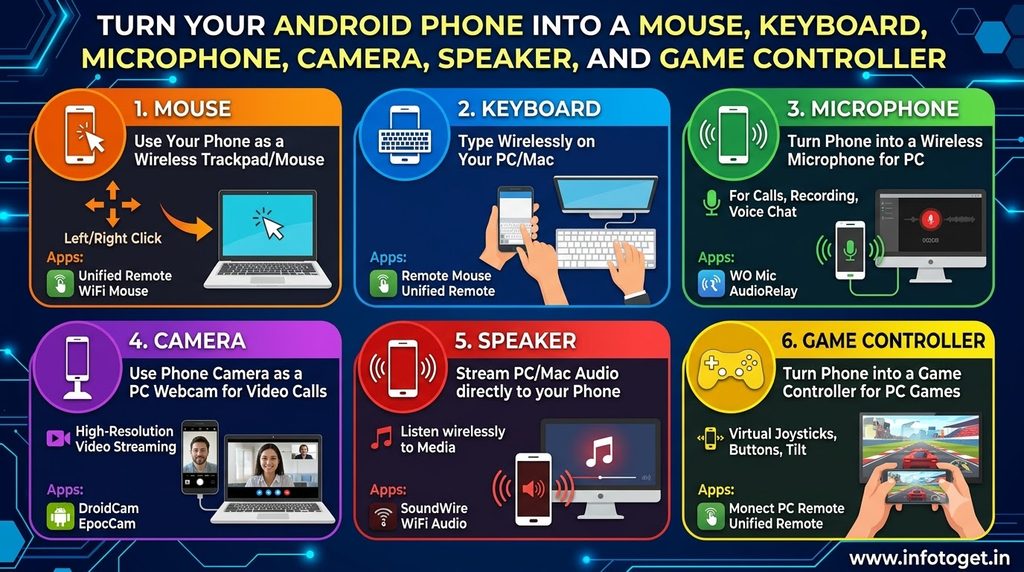
Smartphones are no longer limited to calling, messaging, photography, and entertainment. With the right applications, an Android phone can become a useful companion for a computer and can perform several functions that normally require separate hardware. Use As is one such application that focuses on making an Android smartphone more useful by allowing it to work as different types of connected devices.
The idea behind the Use As app is simple: instead of carrying or purchasing multiple accessories, you can use the hardware already available on your smartphone for different purposes. A modern Android phone already has a touchscreen, microphone, speakers, camera, motion sensors, and other components. An application can make these resources useful in different ways when the phone is connected to another device.
The visual identity of Use As represents this concept clearly. It shows a smartphone in the center surrounded by icons representing a camera, microphone, mouse, keyboard, speaker, and game controller. This gives a good overview of the type of experience the application is designed around.
In this article, we will take a closer look at the Use As app, its concept, possible uses, supported functions, and why an application like this can be useful for Android users.
What Is the Use As App?
Use As is an Android application designed around the idea of using a smartphone as different types of input or hardware devices.
Instead of thinking of your Android phone only as a standalone device, the application provides a way to use it in different roles. Depending on the available functionality and connection setup, the phone can be used for tasks associated with devices such as a mouse, keyboard, microphone, camera, speaker, or game controller.
This can be particularly useful when you are working with a computer and do not have a particular accessory available at the moment.
For example, imagine that your computer’s mouse stops working. If Use As supports the required connection and mode, your smartphone can potentially provide an alternative way to control the computer. Similarly, the phone’s built-in microphone or camera can be useful when another computer accessory is unavailable.
The main attraction is therefore convenience and flexibility.
Why Use a Phone for Different Devices?
Most people carry their smartphone everywhere. A computer mouse, external microphone, webcam, keyboard, speaker, and game controller, on the other hand, are separate pieces of hardware.
This creates an interesting opportunity for smartphone applications.
A phone already contains several components that can perform similar basic functions:
- A touchscreen can provide touch-based controls.
- The microphone can capture audio.
- The camera can capture video.
- The speaker can produce sound.
- Sensors can support movement-based interactions.
- Wireless connectivity can allow communication with another device.
Use As brings this idea into one application rather than requiring users to install a separate app for every possible function.
That makes the concept especially interesting for students, remote workers, casual computer users, and people who frequently move between different devices.
Use As as a Wireless Mouse
One of the most useful possibilities shown by the app’s interface is using the smartphone as a mouse.
A physical mouse is normally used to move the pointer, click items, scroll through pages, and perform other computer operations. A smartphone touchscreen can provide an alternative control surface.
This can be convenient in situations where:
- Your mouse is temporarily unavailable.
- You are controlling a computer from a short distance.
- You want a portable control option.
- You are giving a presentation.
- You need an emergency alternative to a physical mouse.
The smartphone’s screen can provide an interactive surface while the connection allows the computer to receive the corresponding controls.
For occasional use, this type of functionality can be particularly convenient because there is no need to carry another physical device.

Using Your Phone as a Keyboard
The keyboard icon in the Use As concept also points toward another useful function: using the Android phone as a keyboard.
Typing on a phone is already something most users are familiar with. A virtual keyboard can therefore become another method of entering text on a connected computer.
This could be useful when a physical keyboard is not available or when you need a temporary input method.
For example, if you have connected a computer to a television and are sitting away from the desk, using a phone as an input device can be more convenient than walking back and forth to a physical keyboard.
However, for long documents and professional typing, a full-size physical keyboard can still be more comfortable. A smartphone keyboard is better understood as a flexible alternative for specific situations.
Phone as a Microphone
Another interesting possibility associated with Use As is the ability to use the smartphone’s microphone for another connected device.
Almost every modern Android phone contains a microphone capable of recording voice. This hardware can potentially be useful when a computer does not have a suitable microphone available.
A phone-based microphone can be useful for activities such as:
- Voice communication
- Online meetings
- Voice recording
- Casual conversations
- Testing audio input
- Temporary microphone requirements
The actual audio quality can depend on the smartphone’s microphone, connection method, environment, and the implementation of the application.
For users who already have a good-quality phone microphone, having another way to use it can be convenient.
Using the Smartphone Camera
The camera icon is another important part of the application’s concept.
Smartphones often have better cameras than many inexpensive computer webcams. This makes a phone potentially useful when a computer does not have a webcam or when the available webcam does not provide the desired image quality.
A smartphone camera can be particularly useful for:
- Video calls
- Online classes
- Meetings
- Streaming-related setups
- Video communication
- Temporary webcam requirements
The benefit is that you do not necessarily need to purchase a separate camera just to perform basic video communication.
Of course, the experience depends on the supported connection method and whether the target computer or application recognizes the phone camera in the required way.
Using Your Phone as a Speaker
The speaker icon shown around the phone represents another possible role: using the phone’s speaker as an audio output device.
Smartphones contain built-in speakers, which makes them convenient for producing sound without requiring additional hardware.
This can be useful when:
- A computer’s speaker is not working.
- You need temporary audio output.
- You want to test sound.
- You need a portable audio solution.
A smartphone speaker is not necessarily a replacement for dedicated computer speakers or a quality audio system. Nevertheless, having the option available can be useful in an emergency or temporary situation.
Smartphone as a Game Controller
One of the more interesting ideas associated with Use As is the game controller function.
Many people already use smartphones for gaming, but the concept becomes different when the phone is used as a controller for another device.
A touchscreen can display virtual buttons and control elements, potentially allowing the phone to act as a controller for compatible games or applications.
This could be useful for casual gaming when a physical controller is unavailable.
The exact gaming experience will depend on the supported controller layout, connection method, game compatibility, and responsiveness. Users who regularly play games that require precise controls may still prefer a dedicated controller.
For casual gaming, however, turning a phone into an additional controller can be an interesting option.
One Smartphone, Multiple Possibilities
The biggest idea behind Use As is its multi-purpose approach.
Instead of having individual applications and accessories for every function, the phone becomes the central device.
Think about a situation where you are using a desktop computer:
Mouse unavailable? Your phone can potentially provide an alternative.
Keyboard problem? A virtual keyboard can be useful.
No microphone? The phone’s microphone may help.
No webcam? The smartphone camera can potentially fill that role.
Need another speaker? The phone may provide audio output.
Want a game controller? The phone can potentially become one.
This flexibility is what makes applications like Use As interesting.
Who Can Benefit From Use As?
Use As can be useful for different types of Android users.
Students
Students often work with laptops and desktop computers at home. If a peripheral is temporarily unavailable, having a smartphone-based alternative can be helpful.
For example, a student attending an online class may need a microphone or camera. A compatible smartphone setup can provide another option.
Remote Workers
People working from home frequently use webcams, microphones, keyboards, and other computer accessories.
Having a smartphone that can perform some of these functions can provide additional flexibility when a normal accessory has a problem.
Casual Computer Users
Not everyone wants to purchase multiple computer accessories. For people who only occasionally need a particular function, a smartphone-based solution can be convenient.
Gamers
Casual gamers may find the controller concept interesting, particularly when they want to experiment with controlling another device using their phone.
People Who Travel
Travelers usually prefer carrying fewer accessories. A smartphone is already an essential device, so being able to use it for additional functions can potentially reduce the need for carrying certain temporary-use peripherals.
Simple and Practical Concept
One of the strengths of the Use As concept is that it is easy to understand.
You already own the hardware.
You already know how to use your smartphone.
The application simply explores additional ways in which that hardware can be used.
This approach can be more practical than buying a dedicated device for every occasional requirement.
However, users should remember that turning a phone into another type of device may require a compatible connection, setup process, permissions, or supporting software depending on the specific function.
Things to Consider Before Using the App
Although the idea is useful, users should have realistic expectations.
A smartphone cannot necessarily replace every dedicated computer accessory in every situation.
For example, a physical keyboard may be more comfortable for long typing sessions. A dedicated gaming controller may offer better buttons and more precise controls. Similarly, professional users may prefer a dedicated webcam or microphone for higher-quality recordings.
There can also be differences in performance depending on the phone model, operating system, connection quality, computer configuration, and the application being used.
Therefore, Use As is best viewed as a multi-purpose utility that can provide additional options, rather than automatically replacing every piece of hardware.
Why the App Can Be Useful in Everyday Situations
The real value of a multipurpose utility often appears when something unexpected happens.
Imagine sitting at your computer and suddenly discovering that the mouse has stopped responding. Instead of immediately purchasing another mouse, you may be able to use your smartphone as an alternative.
Or imagine joining an online meeting on a desktop computer that does not have a working webcam. If the required setup is supported, your phone could provide another camera option.
These small situations demonstrate why a multi-function smartphone utility can be valuable.
It is not necessarily about replacing all your accessories. It is about having another option when you need one.
Final Thoughts
Use As is built around an interesting and practical idea: making an Android smartphone more versatile by allowing it to take on different roles.
The application’s concept covers several familiar devices and functions, including a mouse, keyboard, microphone, camera, speaker, and game controller. Instead of treating the smartphone as only a communication and entertainment device, the app explores the additional hardware capabilities already built into modern phones.
For users who frequently work with computers, students, remote workers, casual gamers, and people who simply like experimenting with useful Android utilities, this type of application can be worth exploring.
Its biggest appeal is convenience. You already carry your smartphone, so having the ability to use it for additional purposes can be helpful when a particular computer accessory is unavailable.
At the same time, the best experience will depend on the supported connection method, device compatibility, and the specific function being used. Dedicated hardware can still be preferable for professional work, extended typing, serious gaming, or high-quality audio and video production.
Overall, the Use As app represents a useful approach to getting more functionality from a device that most people already have in their hands. Rather than buying a separate accessory for every temporary need, your Android phone can potentially become a flexible companion for your computer and other compatible devices.